TinyController
Manage all your sports fields in one place
The intuitive tablet design makes line marking a breeze
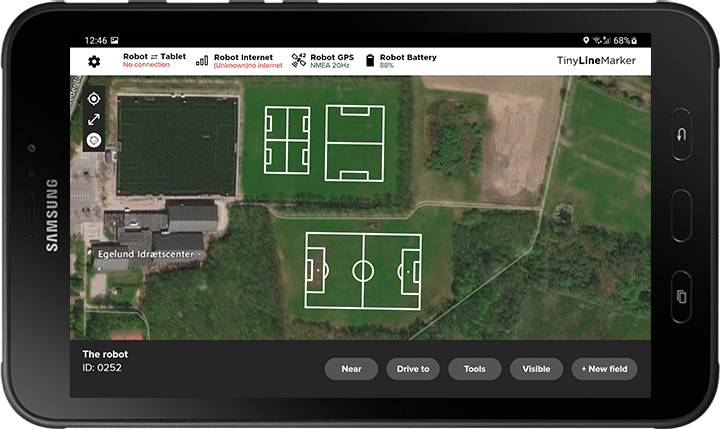
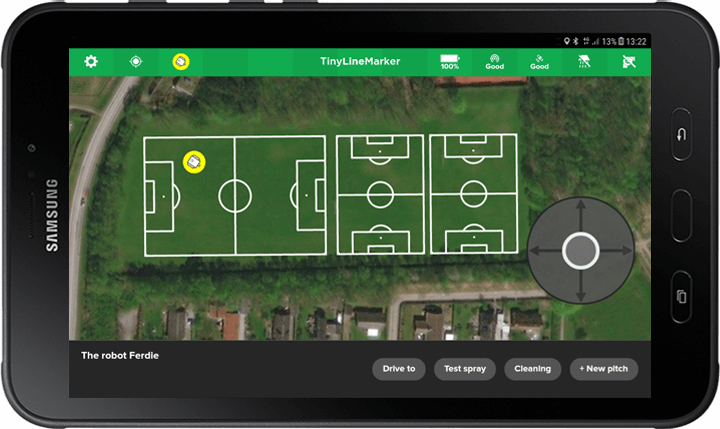
Line marking shouldn’t be a chore. Introducing a user-friendly tablet that puts complete control at your fingertips, empowering you to easily create, copy, move, align, and edit all your field layouts.
Designed with direct input from customers like you, this tablet streamlines your entire workflow. Effortlessly manage your robot’s movements, precisely position pitches, adjust dimensions, and fine-tune settings — all from one intuitive interface. Even cleaning becomes effortless, thanks to clear and concise on-screen instructions. Additionally, choose from over 50 customisable templates for various sports, including football, American football, lacrosse, field hockey, baseball, and rugby.
Key tablet capabilities
The tablet is your direct control centre for the robot. Whether you want to line-mark a field, collect points, or simply move the robot with the joystick, the tablet has you covered.
Create your sports pitches
You create your pitches by selecting a template on the tablet. You will find templates for over 150 sports, including football, rugby, lacrosse, AFL, and more. We are continuously adding new templates to the tablet.
Copy and align
Using the tablet, you can create, copy, move, align, and edit your layouts. When you copy a layout, the tablet provides easy-to-use suggestions for new positions. You can move the field using drag-and-drop directly on the map, and you can set a specific distance between pitches to ensure adequate space for sidelines, spectators, and the like.
Creating fields on the map
You can place your field directly using the background map. This allows you to make changes directly on the pitch and instantly verify that the positions are accurate. You can also test-drive pitches before line marking them to ensure everything is correctly placed.
Create fields from fixed points
It’s possible to create fields from predefined points such as fixed goal posts, goal sockets, or the corners and sidelines of an existing pitch. Use the robot to collect the points, place the layout, save it on the tablet, and start line marking.
Customise field layout
All templates can be customised from the tablet. You can make the football pitch a little shorter if needed, adjust the size of the coaching zones, or omit the hash marks of an American football field if they are not necessary for training. With numerous settings, you are sure to find the configuration that perfectly suits your needs.
Improved user experience
At TinyMobileRobots, we constantly develop new features to enhance your experience with the robot. Here’s a glimpse into some of our most successful features, tried and tested by users worldwide.
Custom Logo Feature
Our Custom Logo Feature lets you paint logos, designs, and images. This is possible thanks to a powerful file reader integrated into the TinyLineMarker app. Paint your team’s logo or event designs for tournaments and competitions. Add surrounding text to bring everything to life!
Multi-Select
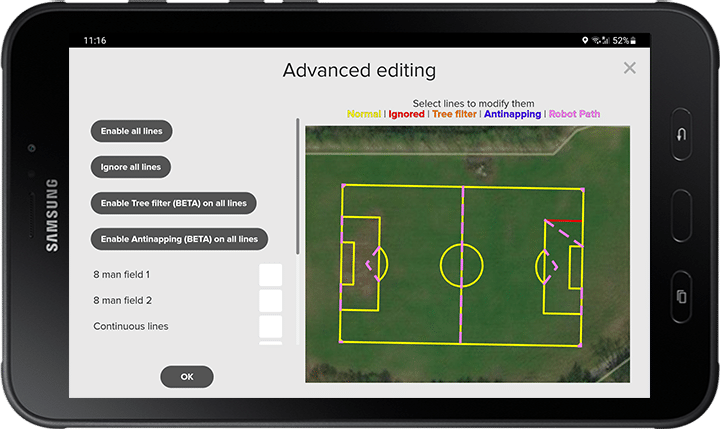
Need to line-mark multiple pitches in a row? Don’t start each one manually — use Multi-Select! Queue your fields to be marked one by one, or simply select all visible layouts at once. Rearrange the order if necessary and press Start. The robot will mark each pitch in sequence.
You can always preview the robot’s path between the layouts. Just zoom in to see the dotted lines indicating the route. This is planned automatically and helps you keep the path clear for the robot.
Low Paint Alert
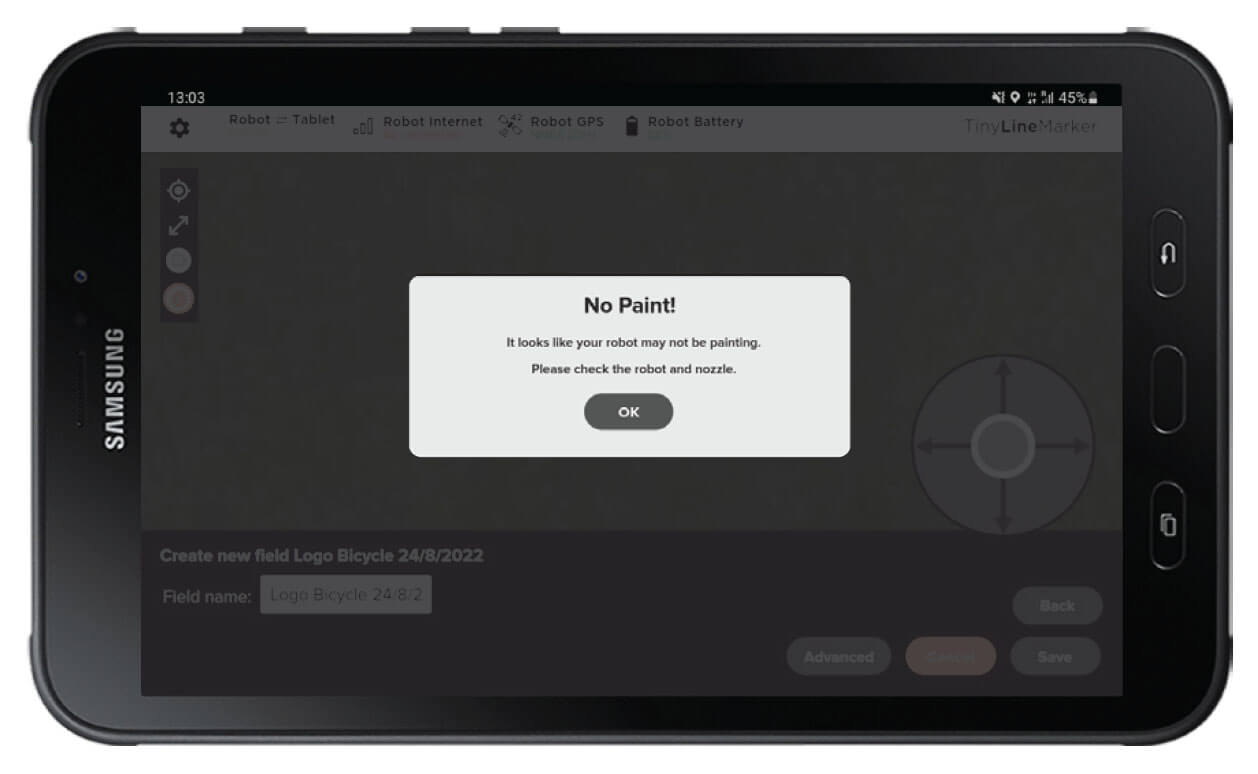
You don’t have to worry about running out of paint while the robot is marking your fields. The robot sends a notification to your tablet when it’s time to refill the paint container or check the paint flow.
The system detects whenever the paint container runs out of paint, triggering an alert and sending a notification. In “Robot Settings,” you can choose whether the robot should automatically stop. Once refilled, simply press “Resume” to continue line marking where it left off.